






Here's how to add a website as an app to your home screen.
- Walter

- 2 days ago
- 2 min read
(Direct access – without opening a browser or searching for favorites)
Many people know this feeling: You want to quickly access your favorite website (e.g., gloryholegays.com ) and have to open your browser, type in the address, or scroll through your bookmarks every time. But there's a much easier way – you can add the website to your home screen like a real app. This saves time and feels truly professional.
Why this is so practical
One tap is all it takes – go directly to the page
Looks like a normal app (own icon)
Works offline (on some sites) or loads lightning fast.
No more browser tab chaos
Instructions for Android (Google Chrome)
Open Chrome and go to the desired website (e.g. gloryholegays.com ).
Tap the three dots ⋮ in the top right corner.
Select “Add to Home Screen” (sometimes also “Install App” or “Install”).
You can also customize the name of the app (e.g., "GloryholeGays").
Tap Add .
Done! The app will now appear on your home screen.


Tip: On some Android devices (Samsung, Xiaomi, etc.) it is also called "Add to home screen".
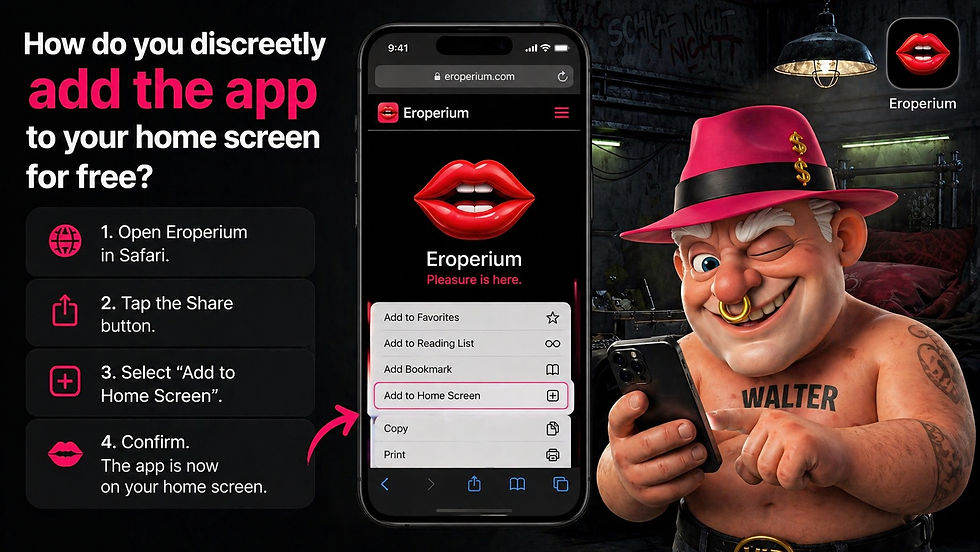
Instructions for iPhone / iPad (Safari)
Open Safari and go to the website.
Left:
Videos
https://www.eroperium.com/four
Music
https://www.eroperium.com/music
Events
https://www.eroperium.com/event-list
Tap the share icon (square with an arrow pointing upwards) at the bottom center.
Scroll down a bit and select "Go to Home screen" .
Customize the name if you wish.
Tap Add (top right).
The app is now on your home screen!
Bonus: For desktop (Windows / macOS)
Chrome / Edge: Three dots → “Apps” → “Install this website”
Safari (macOS): Share icon → “Add to Dock”
Extra tips for maximum comfort
Use a meaningful icon (good web apps automatically create a nice icon).
Place the app in a separate folder with other "web apps" to keep your home screen uncluttered.
Refresh the page regularly – modern websites will then load like native apps.
From now on, you'll never need to open your browser again just to visit your favorite website. Just tap the app icon and you're good to go!
Have you added the website to your home screen yet? Let me know in the comments if it worked or if you had any problems. 😊
To display the Widget on your site, open Blogs Products Upsell Settings Panel, then open the Dashboard & add Products to your Blog Posts. Within the Editor you will only see a preview of the Widget, the associated Products for this Post will display on your Live Site.
Start your 14 days Free Trial to activate products for more than one post.
icon above or open Settings panel.
Please click on the


